
AI vision for construction photos
$1M+
Pipeline with Kiewit, Granite, Kahua
50%
Of ENR 400 via SmartPM integration
3,056
Users · 29 customers at POC delivery
90%+
Tag precision validated in testing
The business problem
Pixly was capturing photos well. The problem was retrieval—and it was eroding their competitive position.
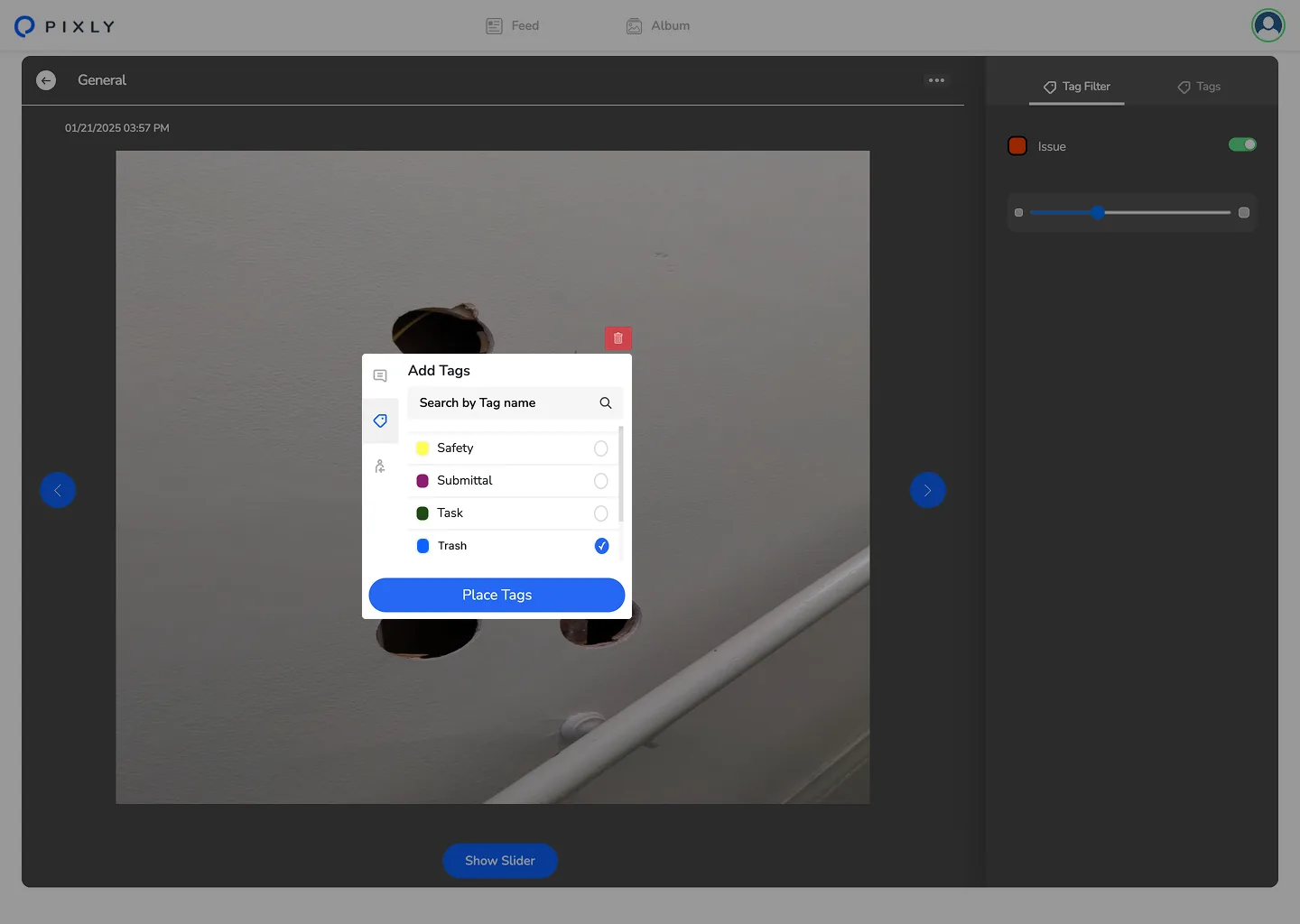
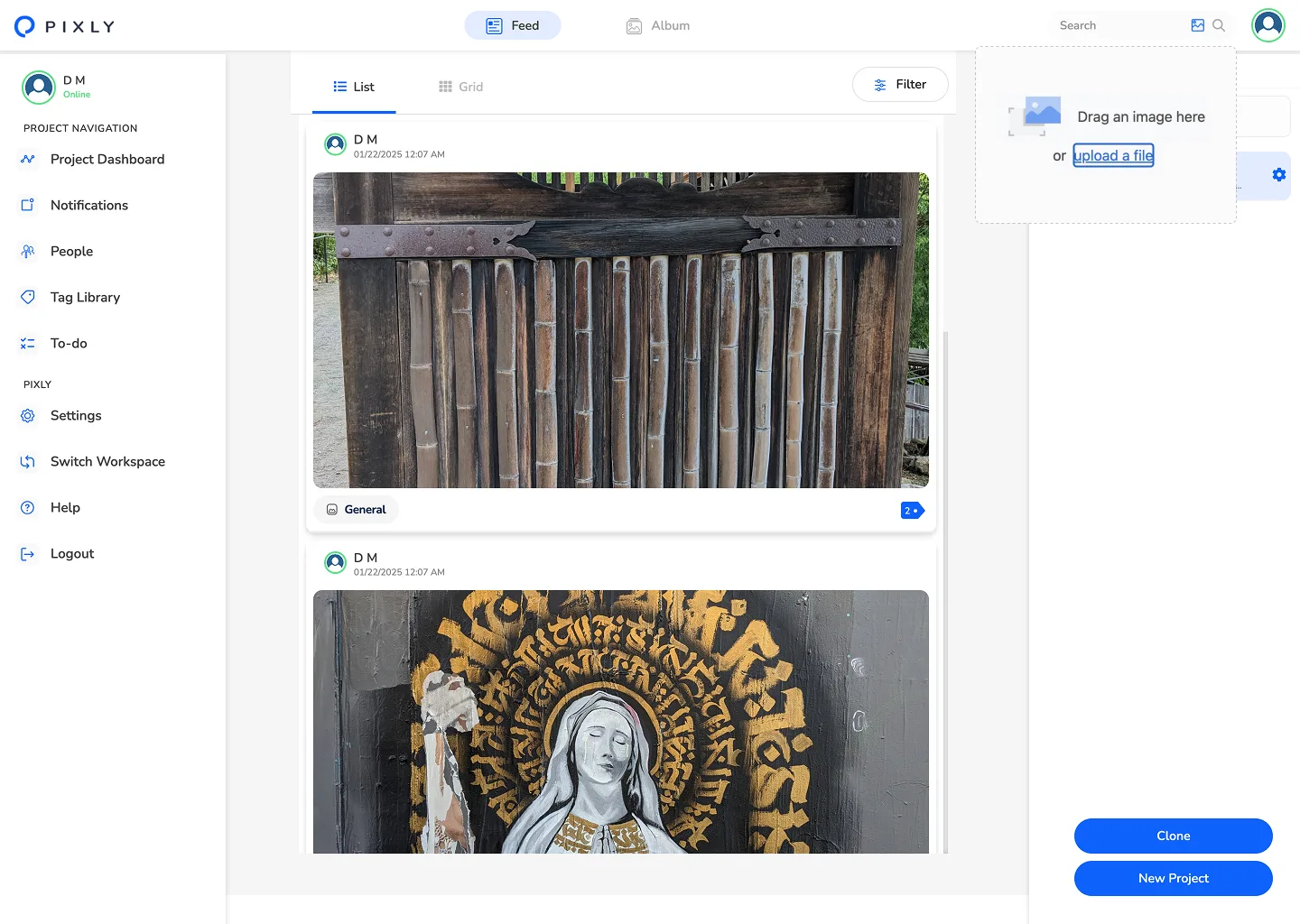
Construction teams generated hundreds of geo-tagged photos per project, but nobody could find them. Manual tags failed in the field. The brief: auto-tag at capture with computer vision, then redesign search to feel native—not bolted on.
Product showcase
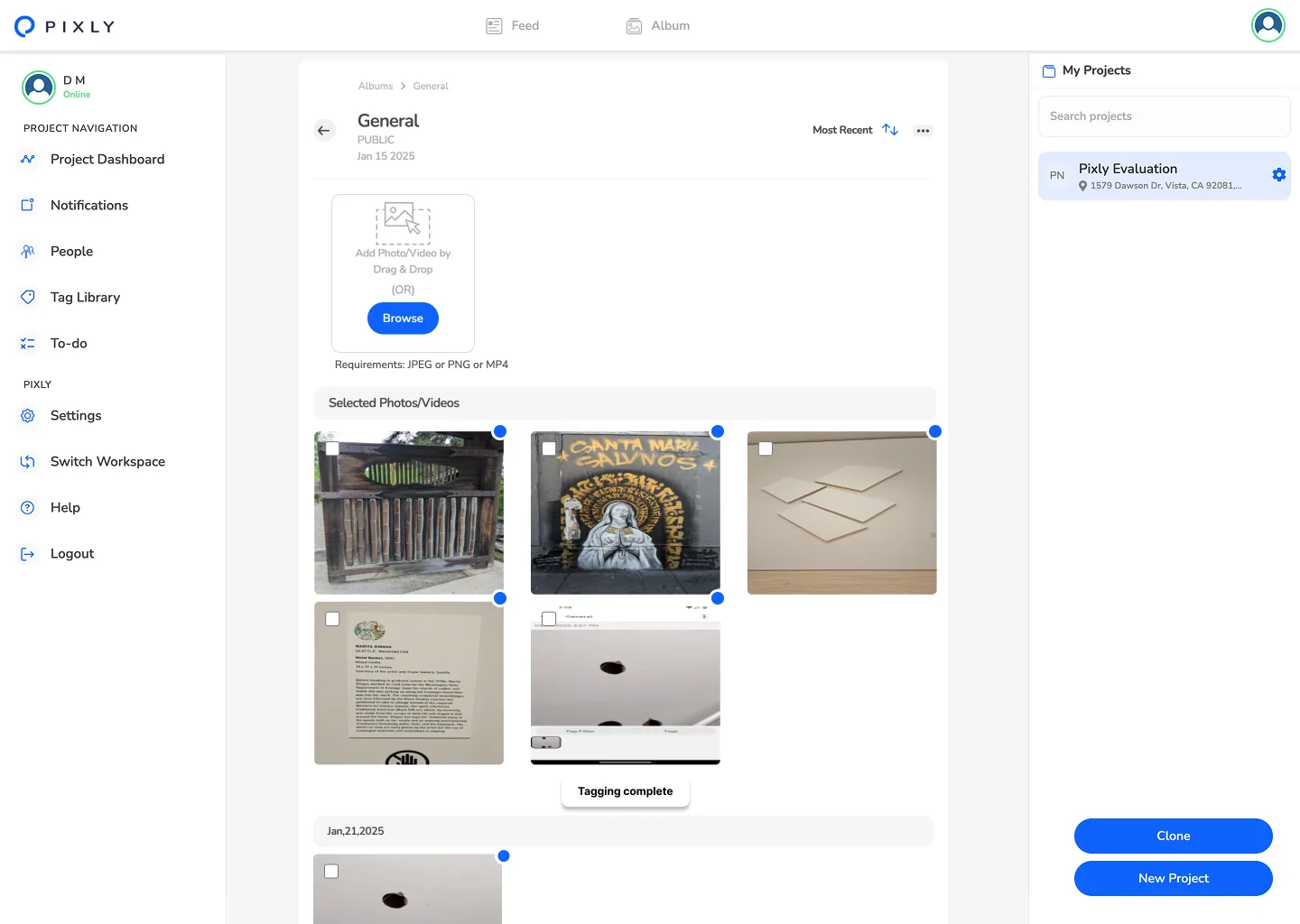
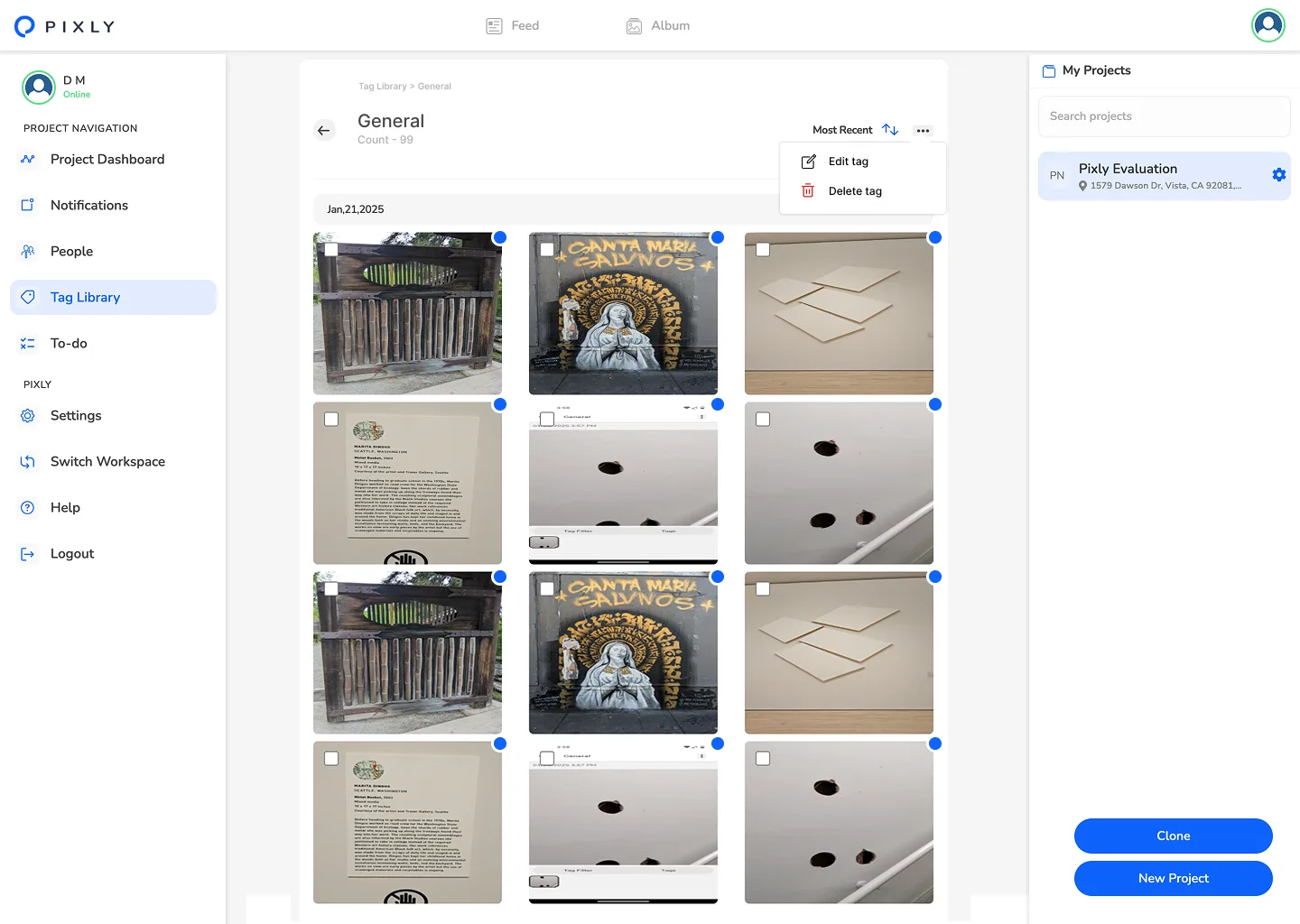
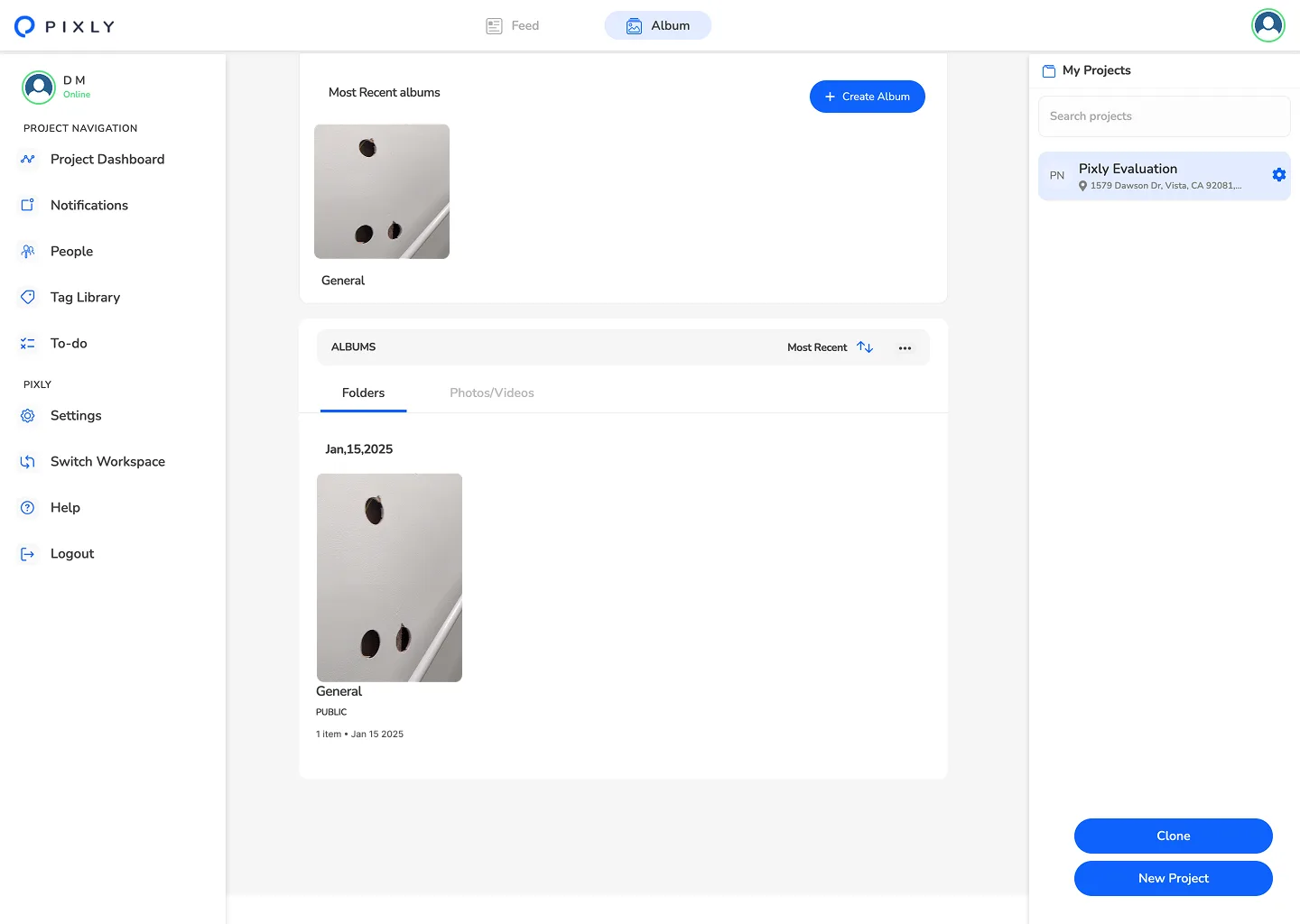
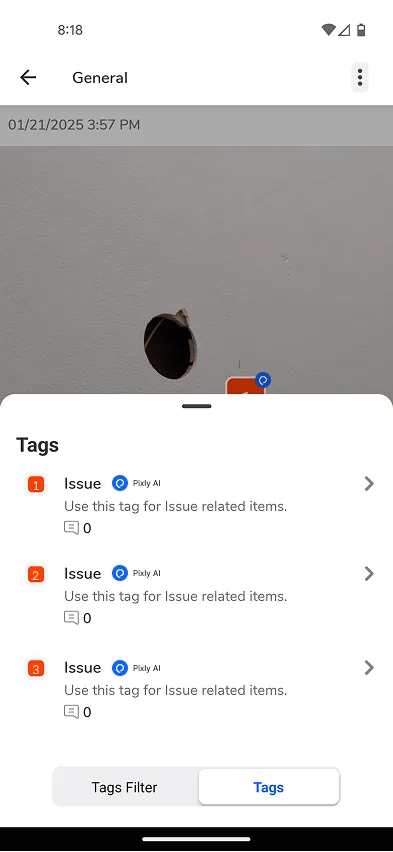
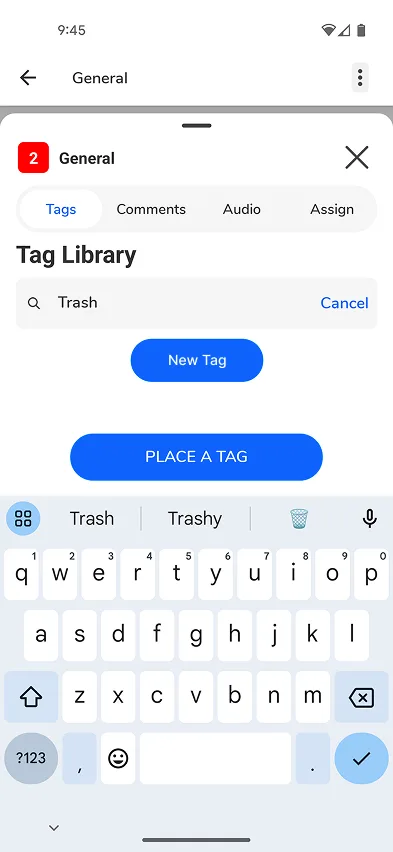
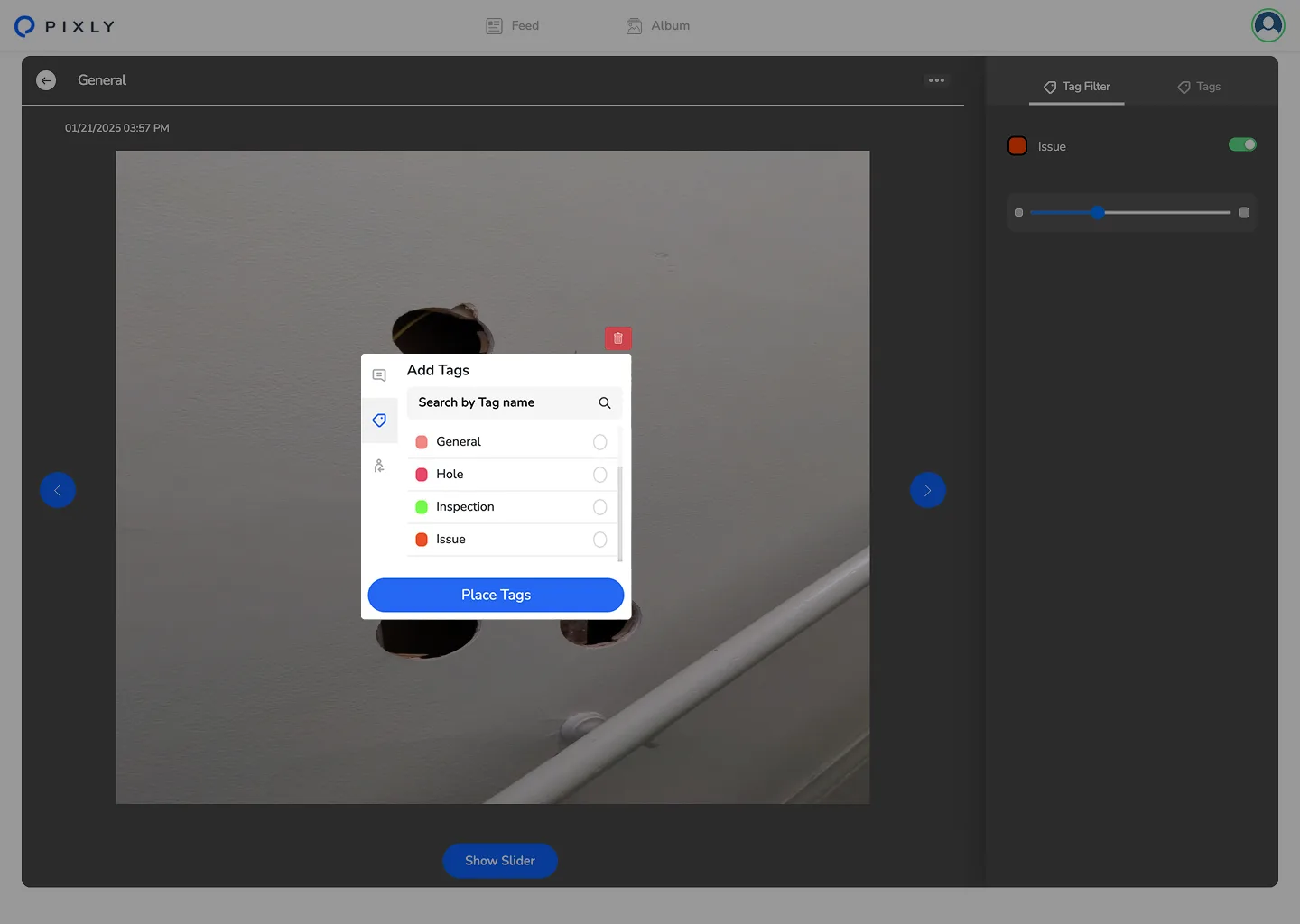
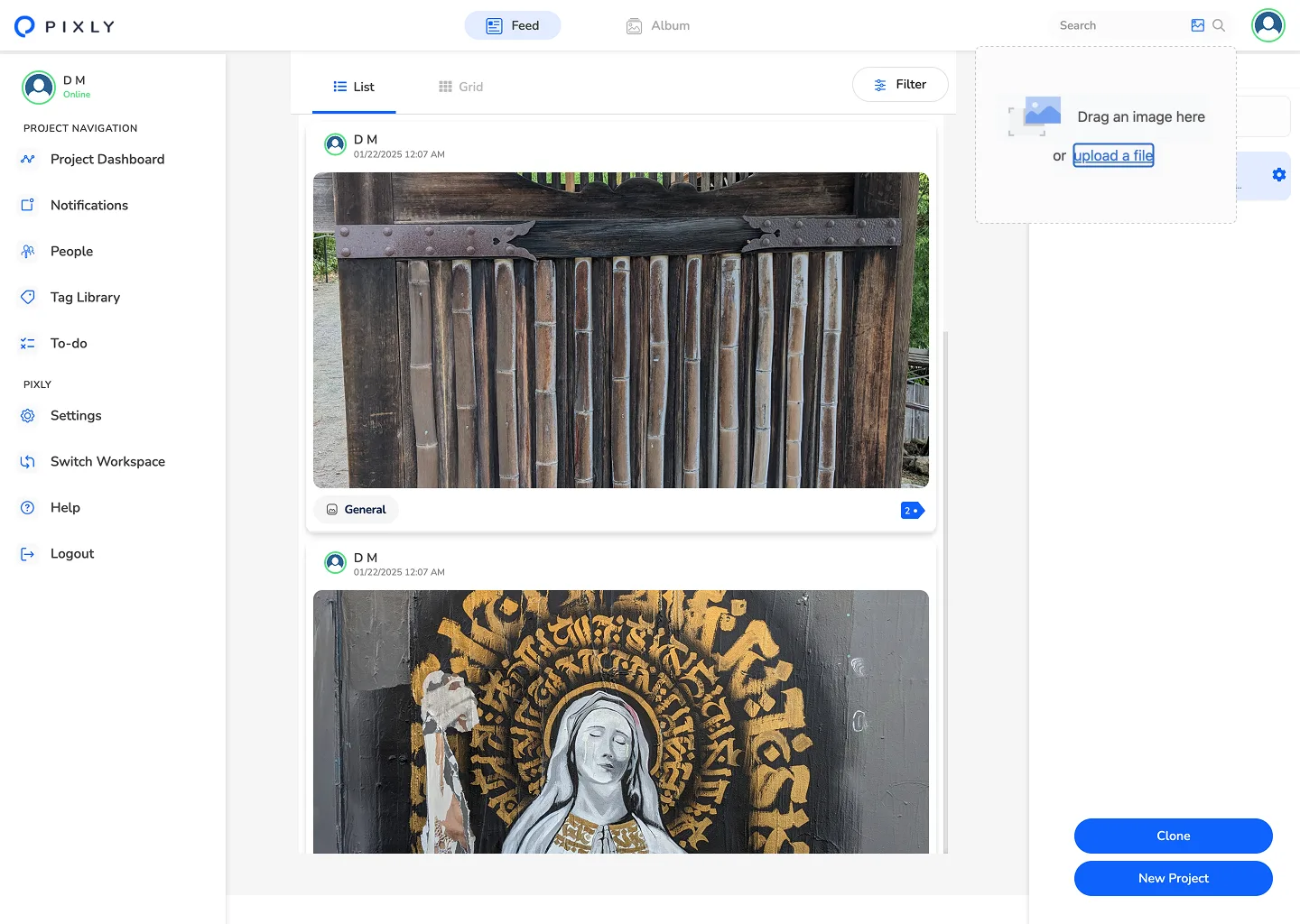
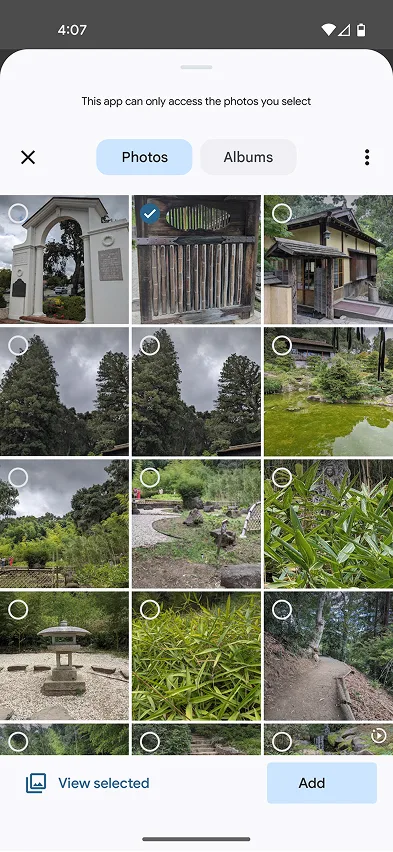
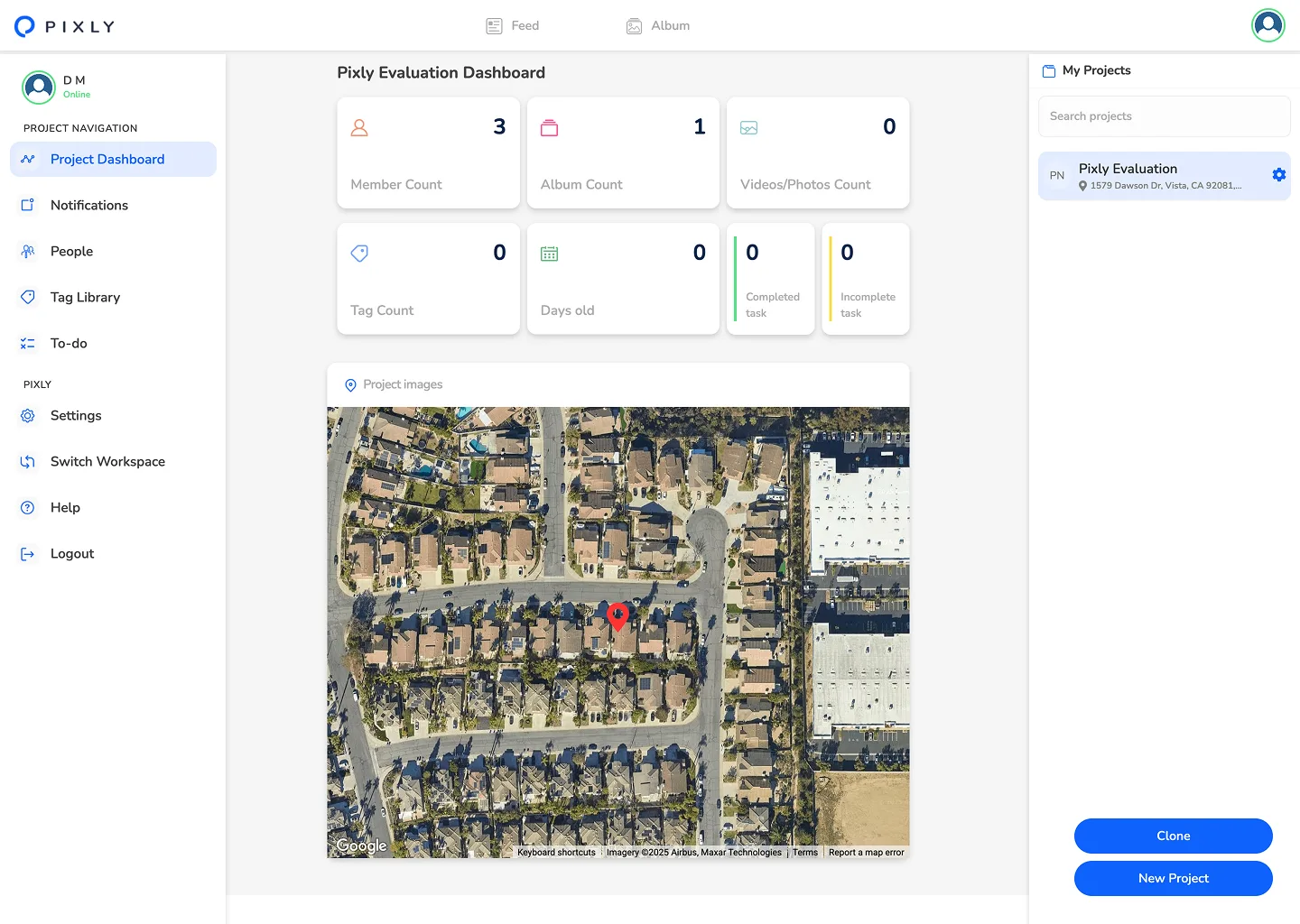
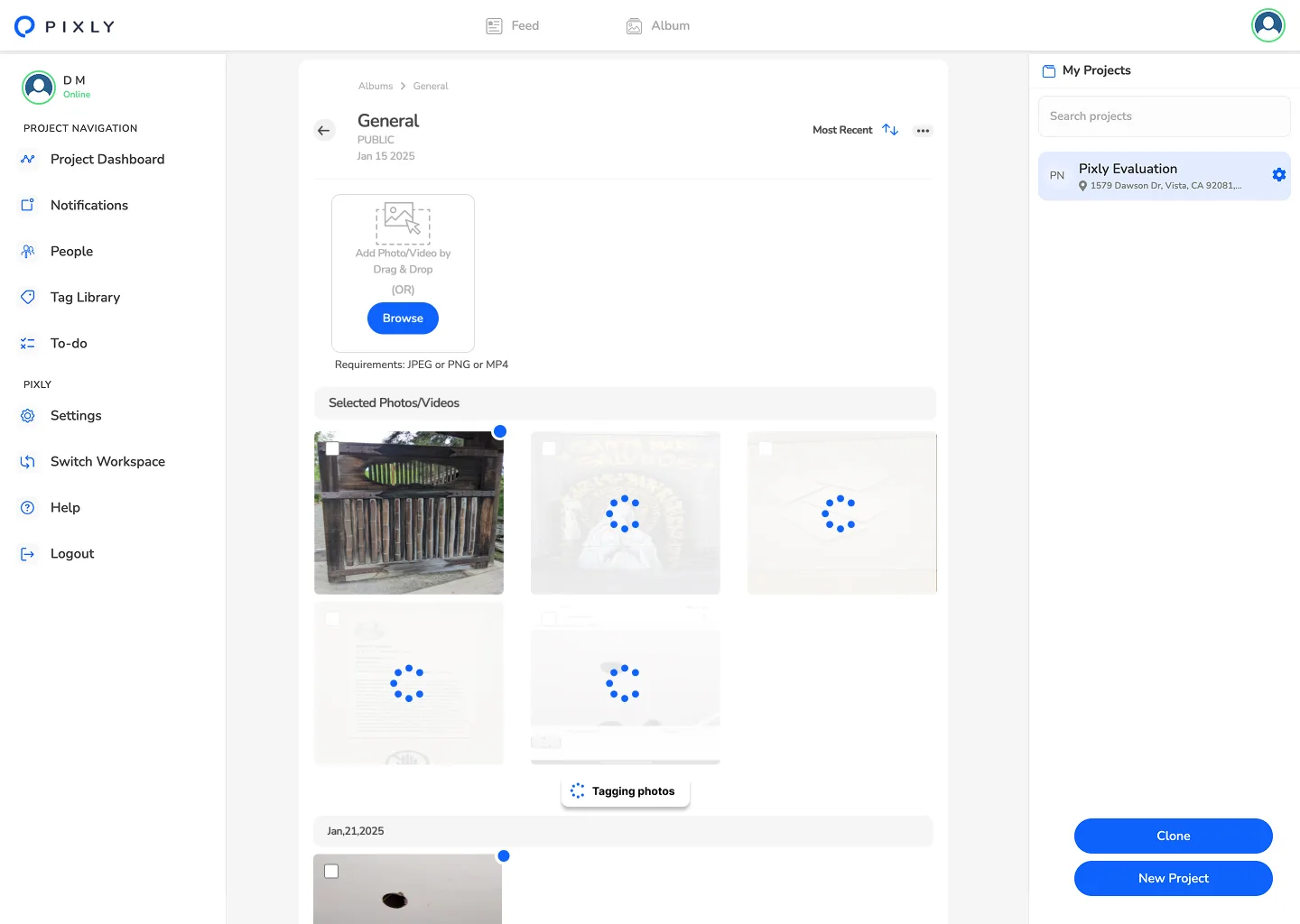
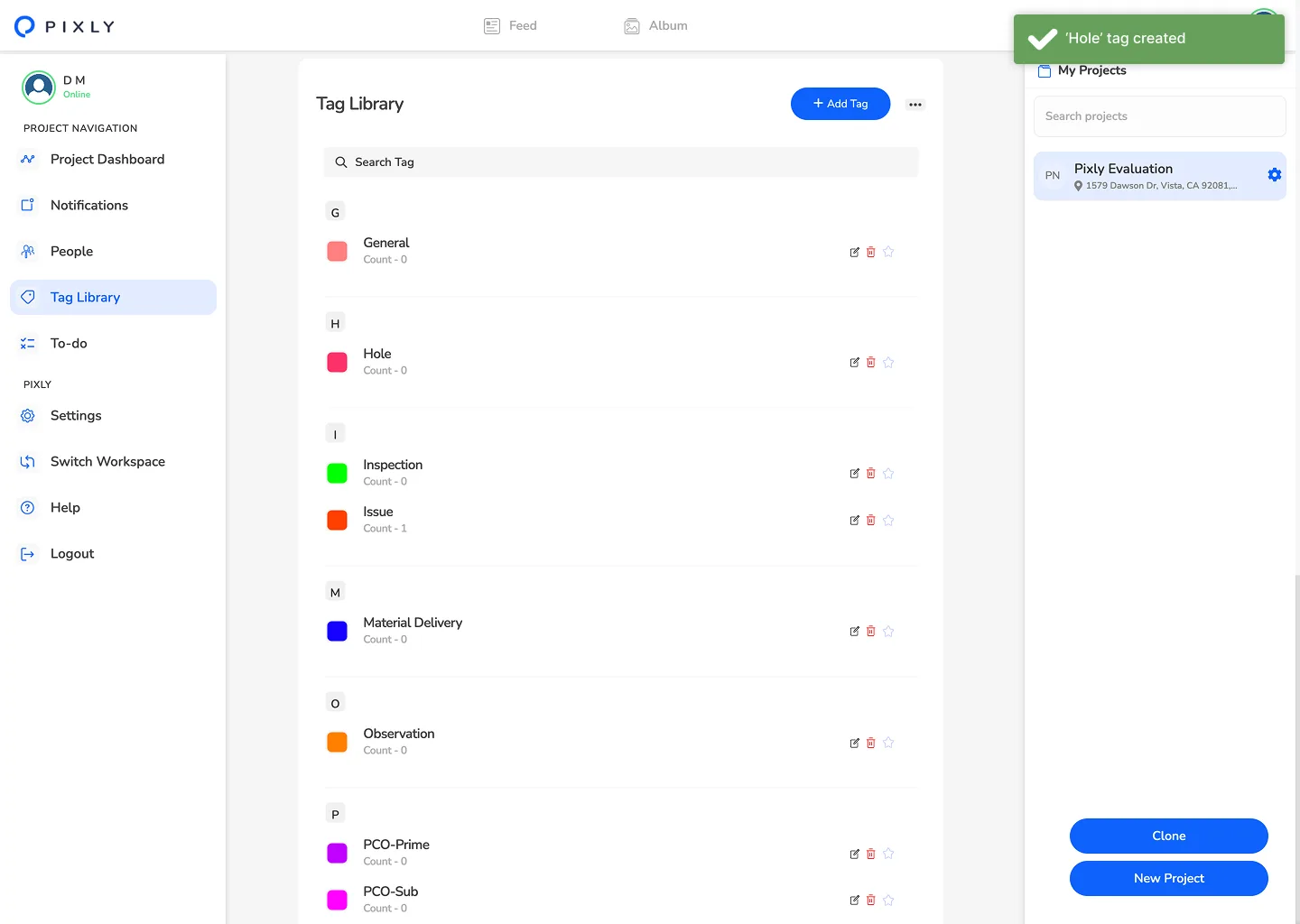
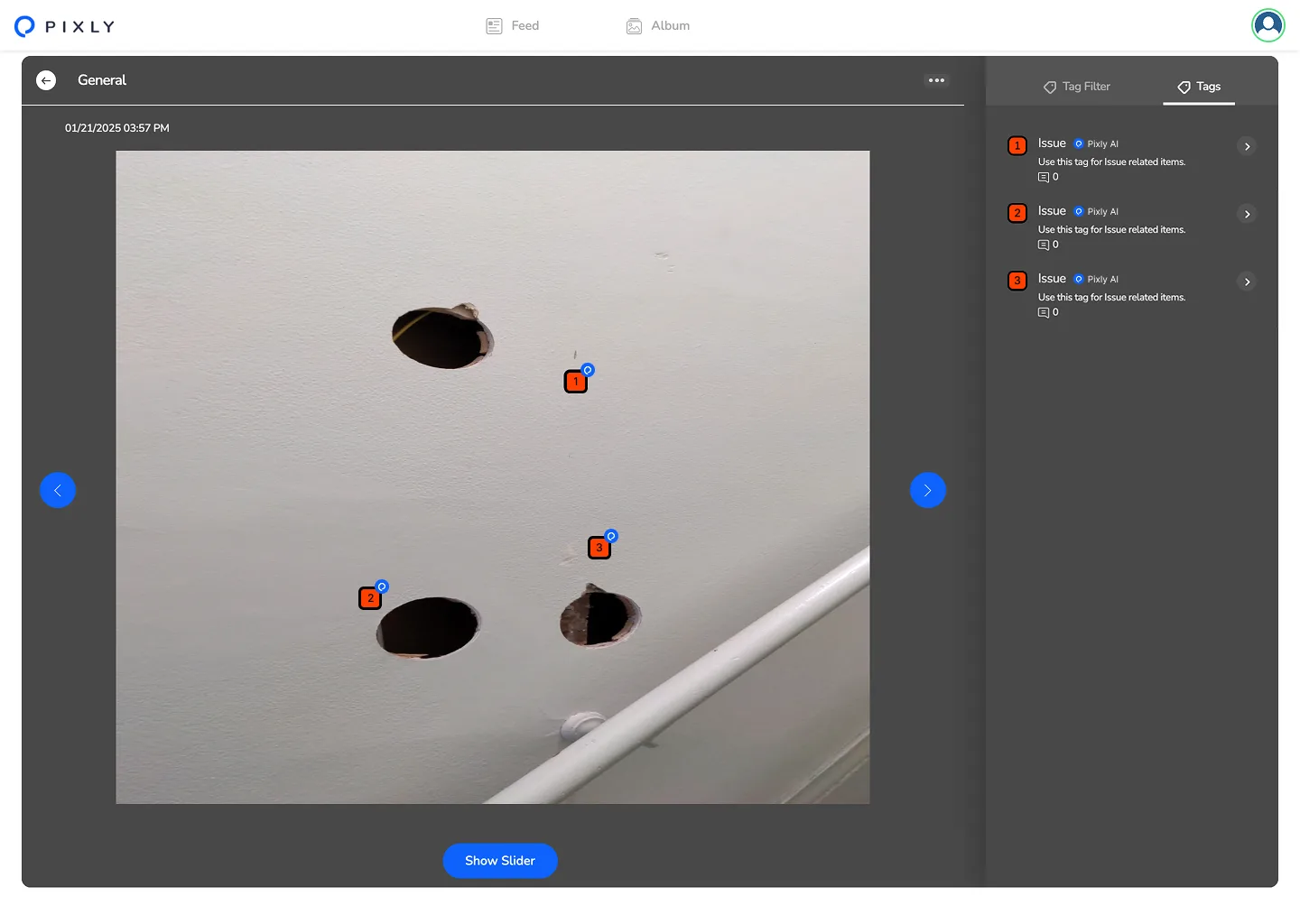
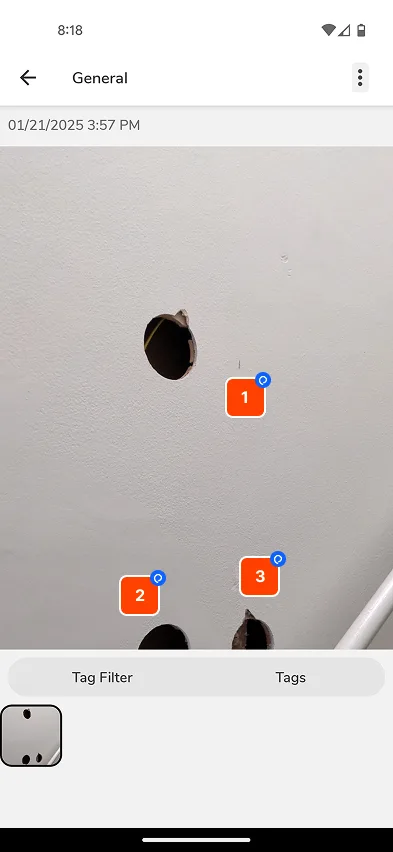
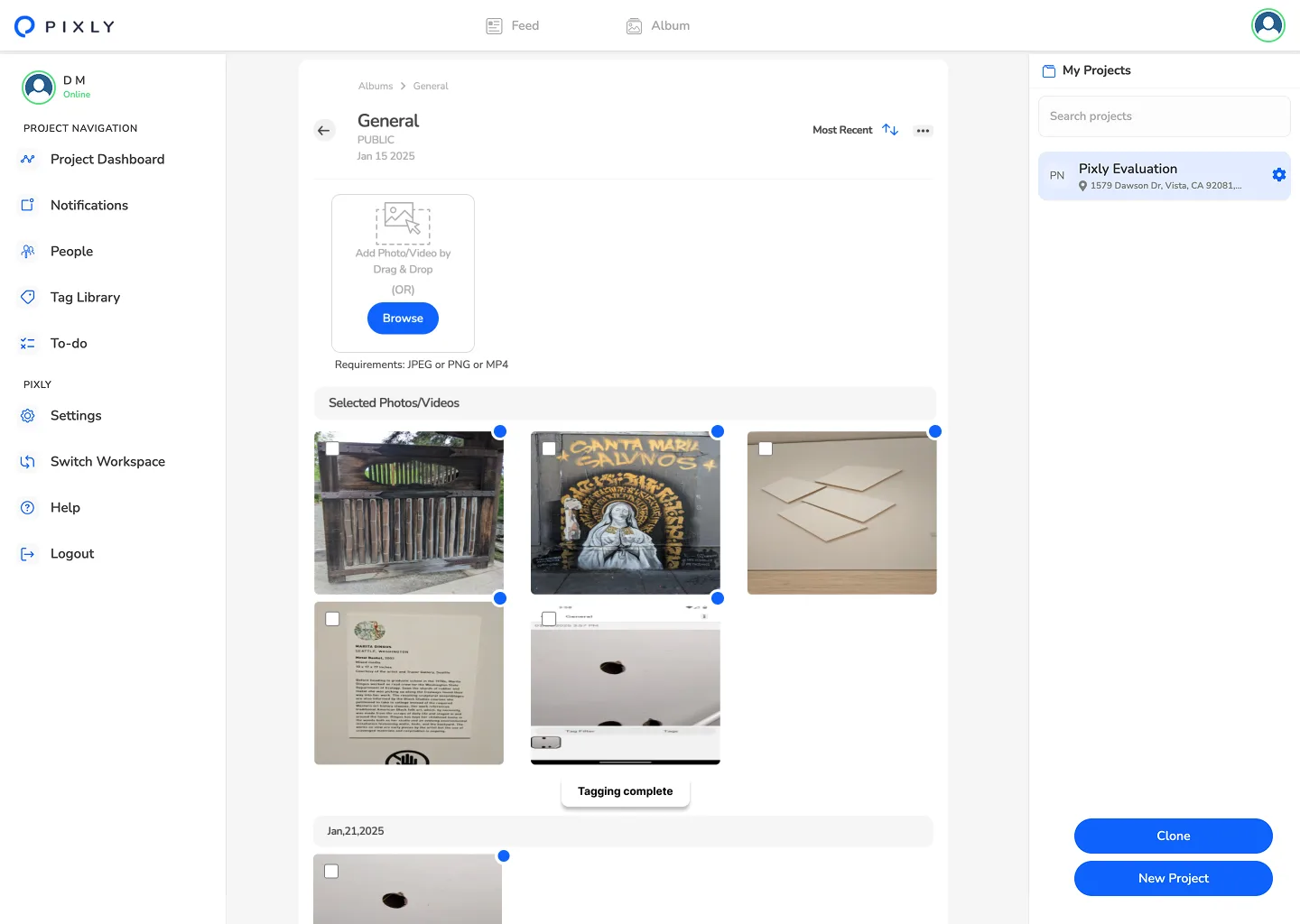
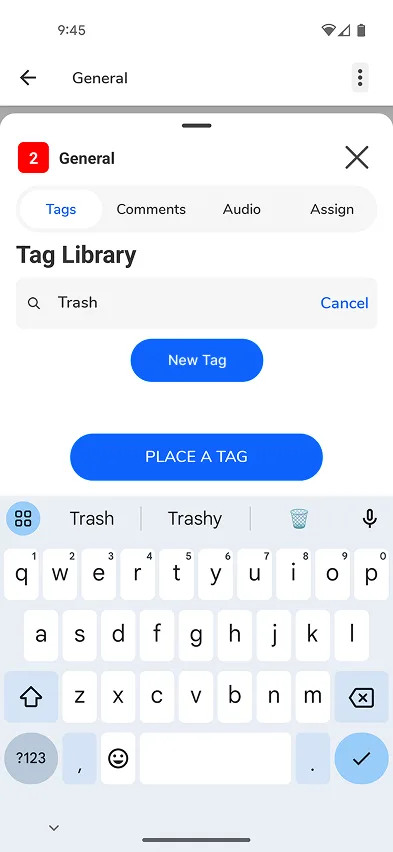
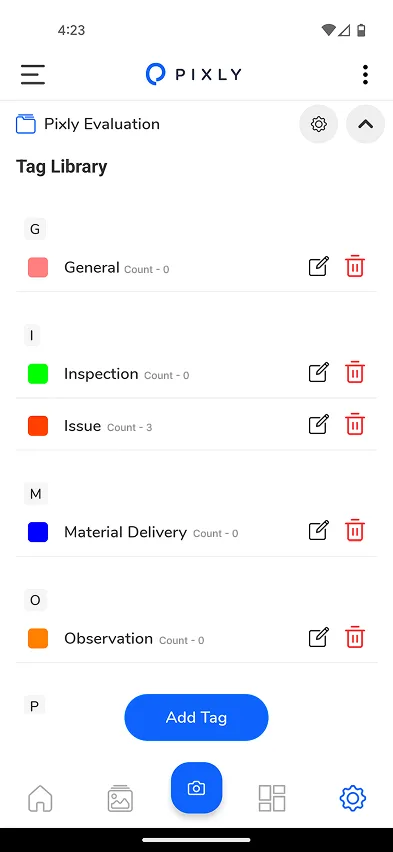
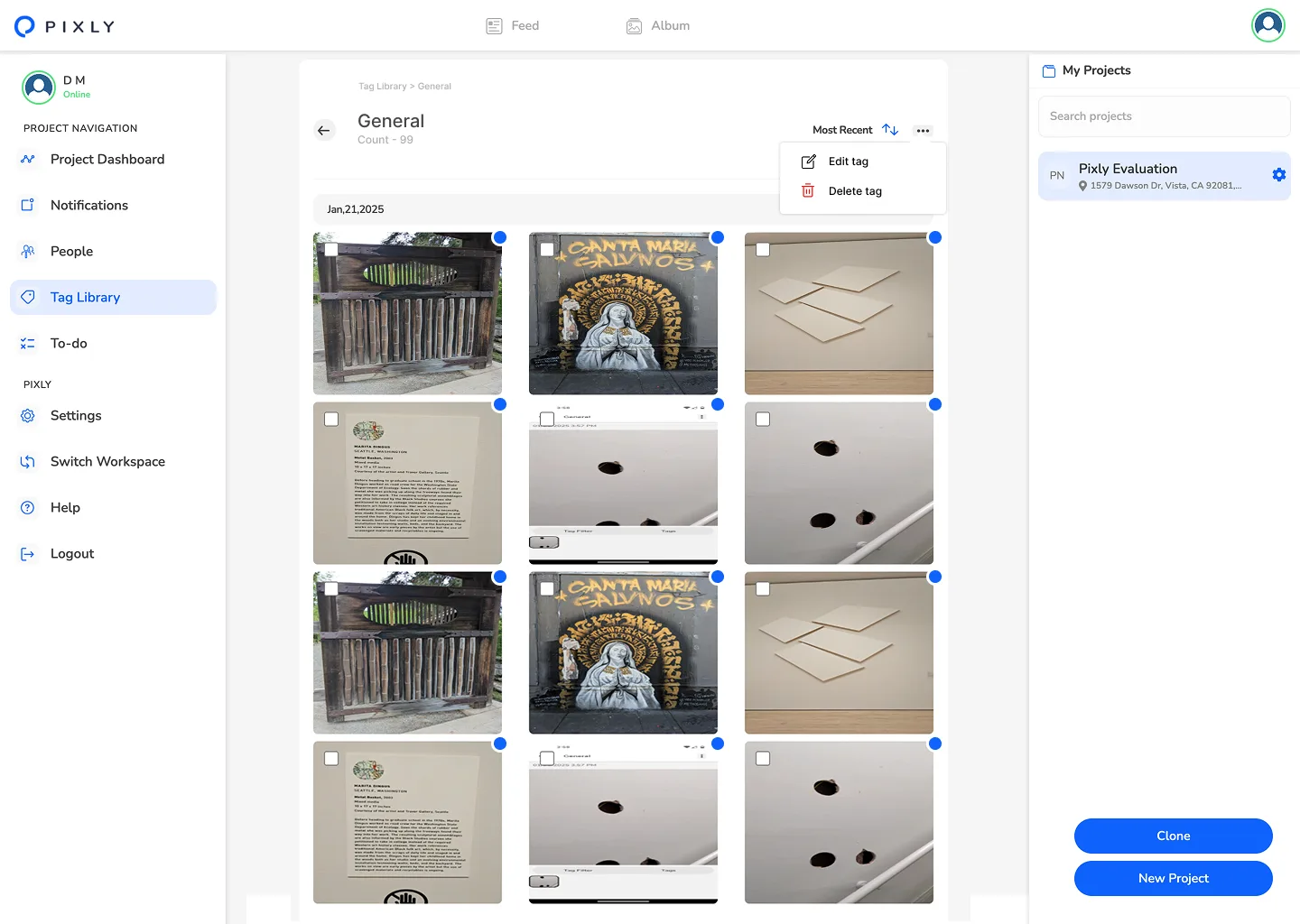
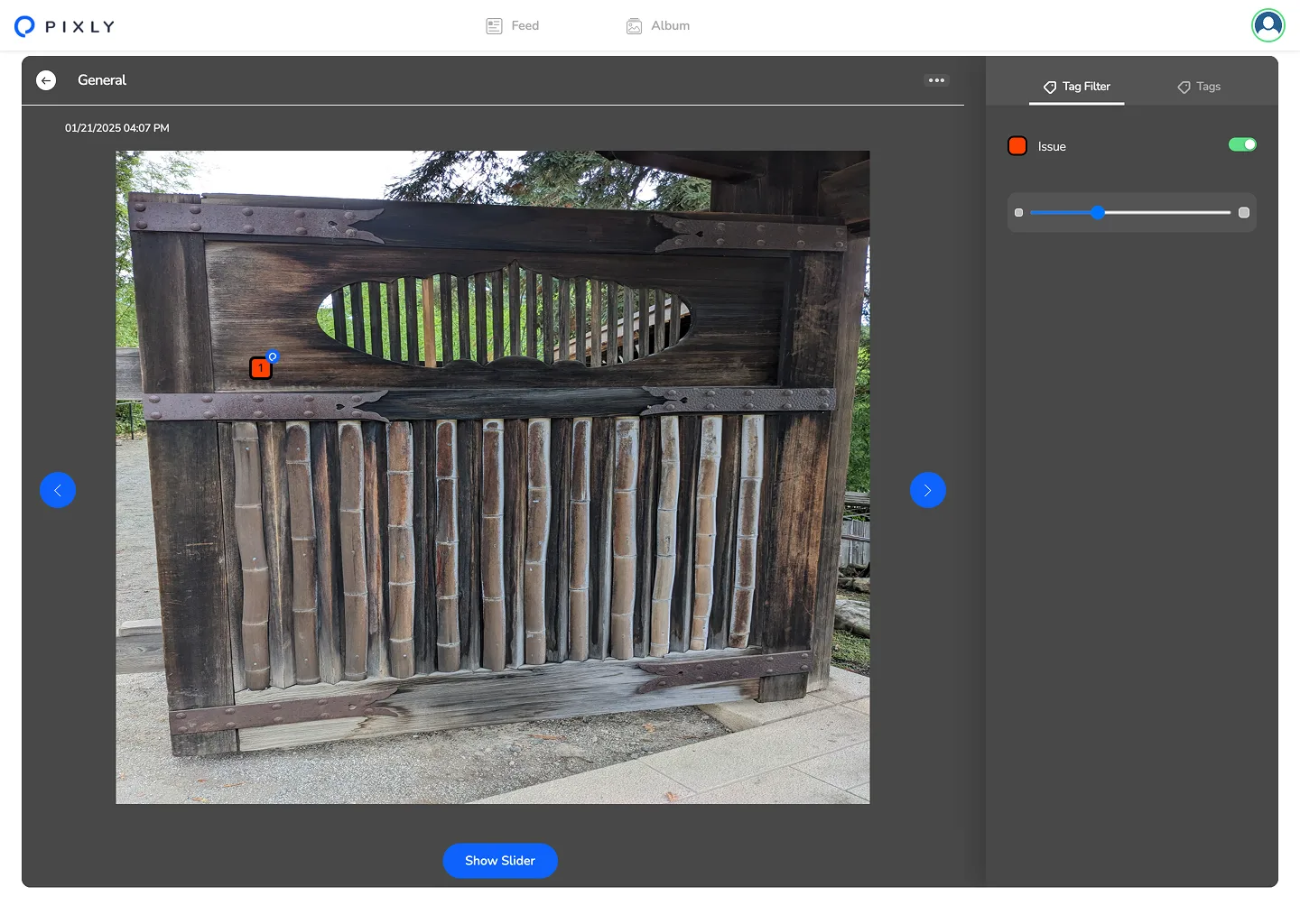
Mobile-first capture and search across iOS, Android, and web—designed for field conditions and desktop reporting.
Capture

Albums
Tags
Search
What I owned
Scope clarity on a three-partner engagement.
I led research and contextual inquiry, owned the tag taxonomy and vocabulary decisions, drove search interaction design and mobile-first direction, validated the AI confidence threshold model with users, and aligned SnapSoft and Carnera around a shared UX direction throughout.
SnapSoft owned the ML pipeline. Carnera executed visual UI. The decisions about what the system should communicate to users—and what it should stay quiet about—were mine.
Research
How field teams actually search.
I conducted contextual inquiry with 8 field users across 3 construction firms. Users think in terms of content, not chronology—materials, equipment, site conditions—not when or where a photo was taken. Average time to find a specific photo by scrolling: 4.2 minutes.
Field adoption of manual tags sat at 15%. Meanwhile, 92% of photos were captured on mobile, but 40% of retrieval happened on desktop during reporting. Search sessions broke into specific recall and categorical browse—both requiring content-indexed search, surfaced differently in the UI.
Users
Two distinct needs, one shared frustration.
Marcus — Site Superintendent. Takes 30–50 photos daily across subcontractor documentation, safety records, and progress updates. Primary device: phone, often in low-connectivity conditions. “By Friday I've taken 200 photos. Finding one from Tuesday? Forget it.”
Sarah — Project Manager. Assembles weekly reports and compliance audits from photos across the whole team. Works on desktop. “I need all concrete pour photos from the east wing, from anyone on the team.”
The three decisions that mattered
AI that doesn't announce itself.
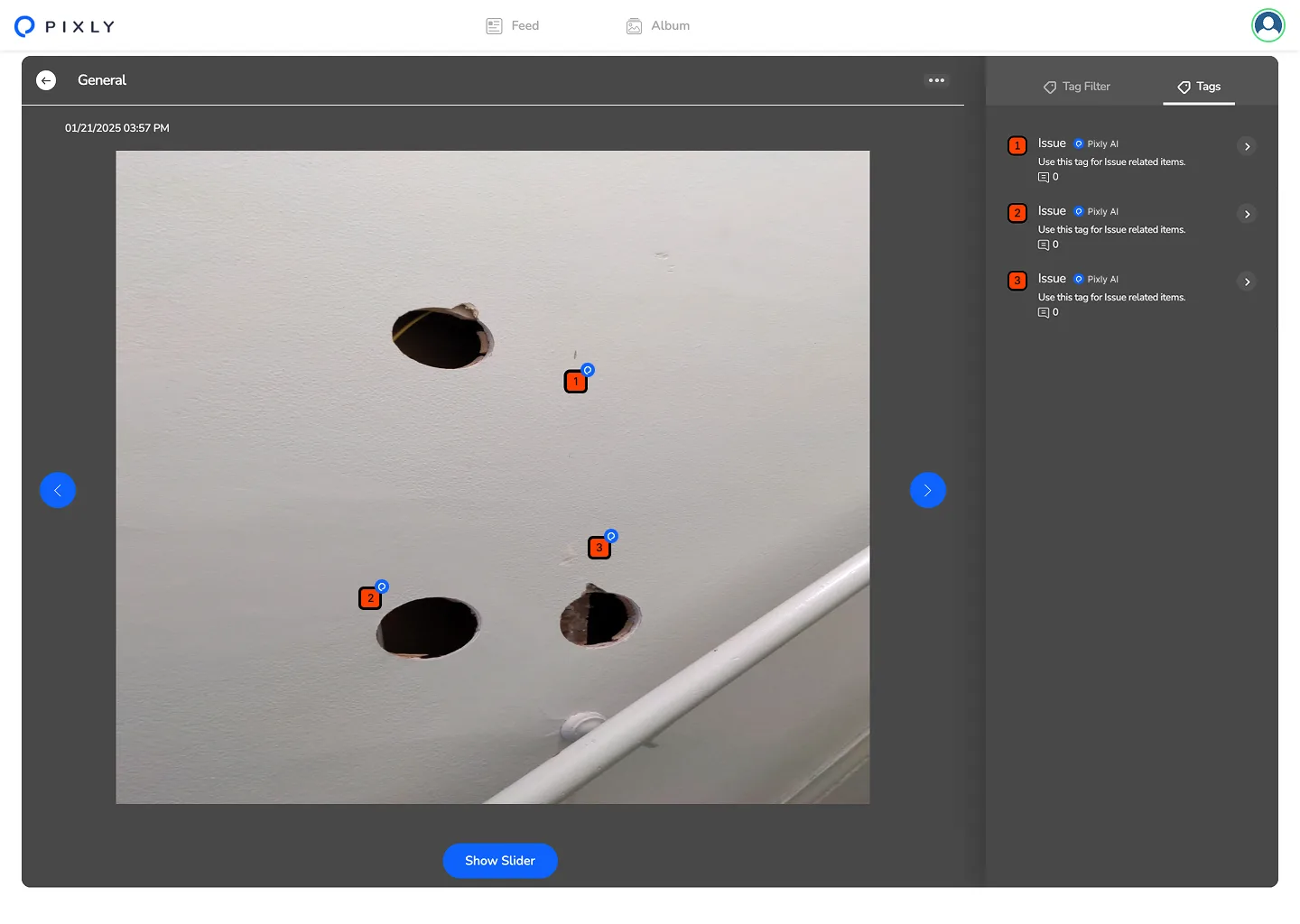
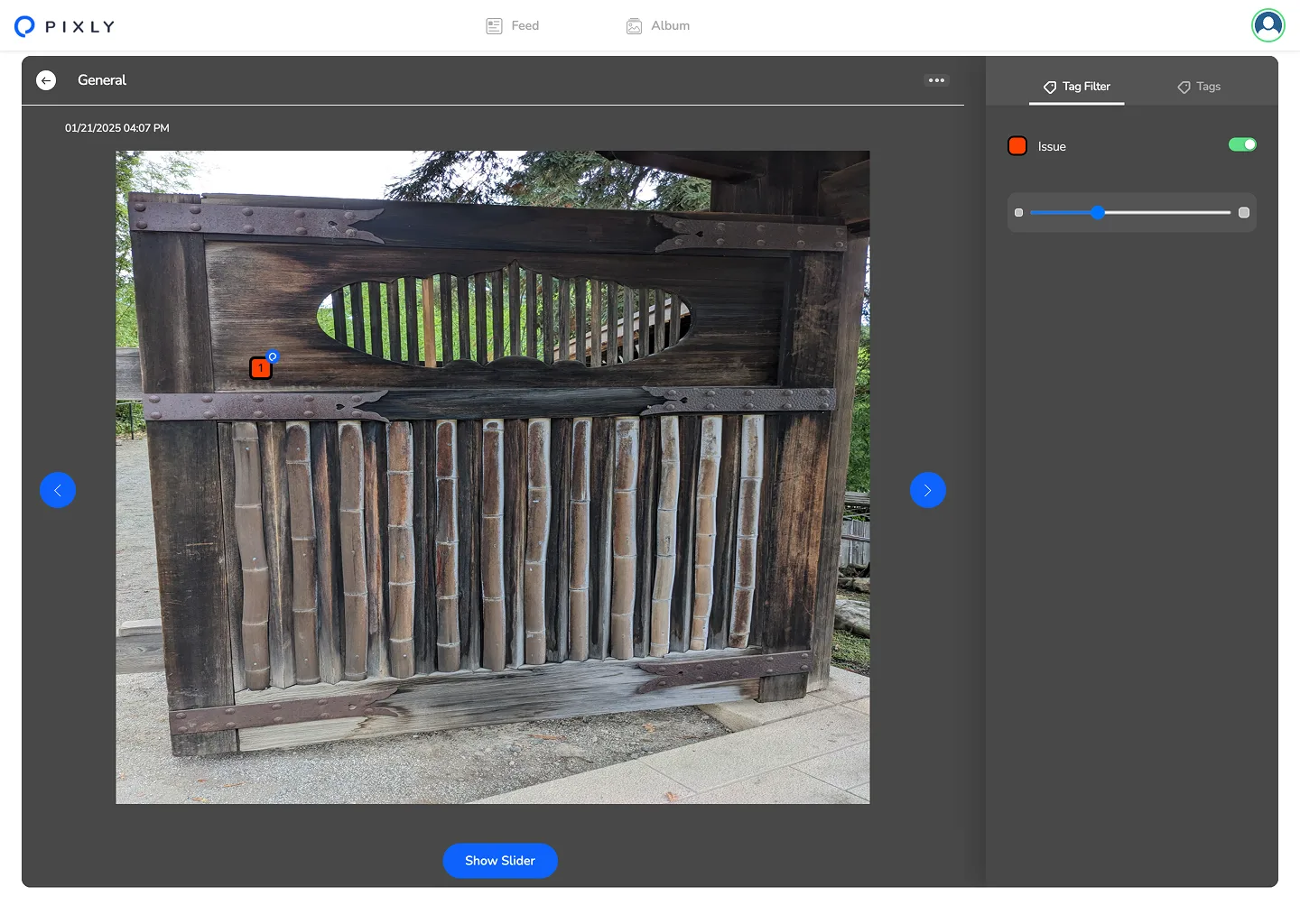
No AI iconography. Tags surface as passive metadata and match annotations—not badges on every thumbnail. Field teams trust the system when it demonstrates accuracy, not when it declares capability.
Suppressing low-confidence tags.
An 80% confidence floor calibrated trust. Tags below threshold stay in the index but out of results until users confirm or reject—building a feedback loop without exposing uncertain AI output.
One search input, not a new surface.
Natural language resolves intent—“excavator near Building C” maps date, location, and material tags. Filter chips remain for power users. Voice input is parity with text for gloved hands and bright sun.

Technical integration
The vocabulary problem I had to own.
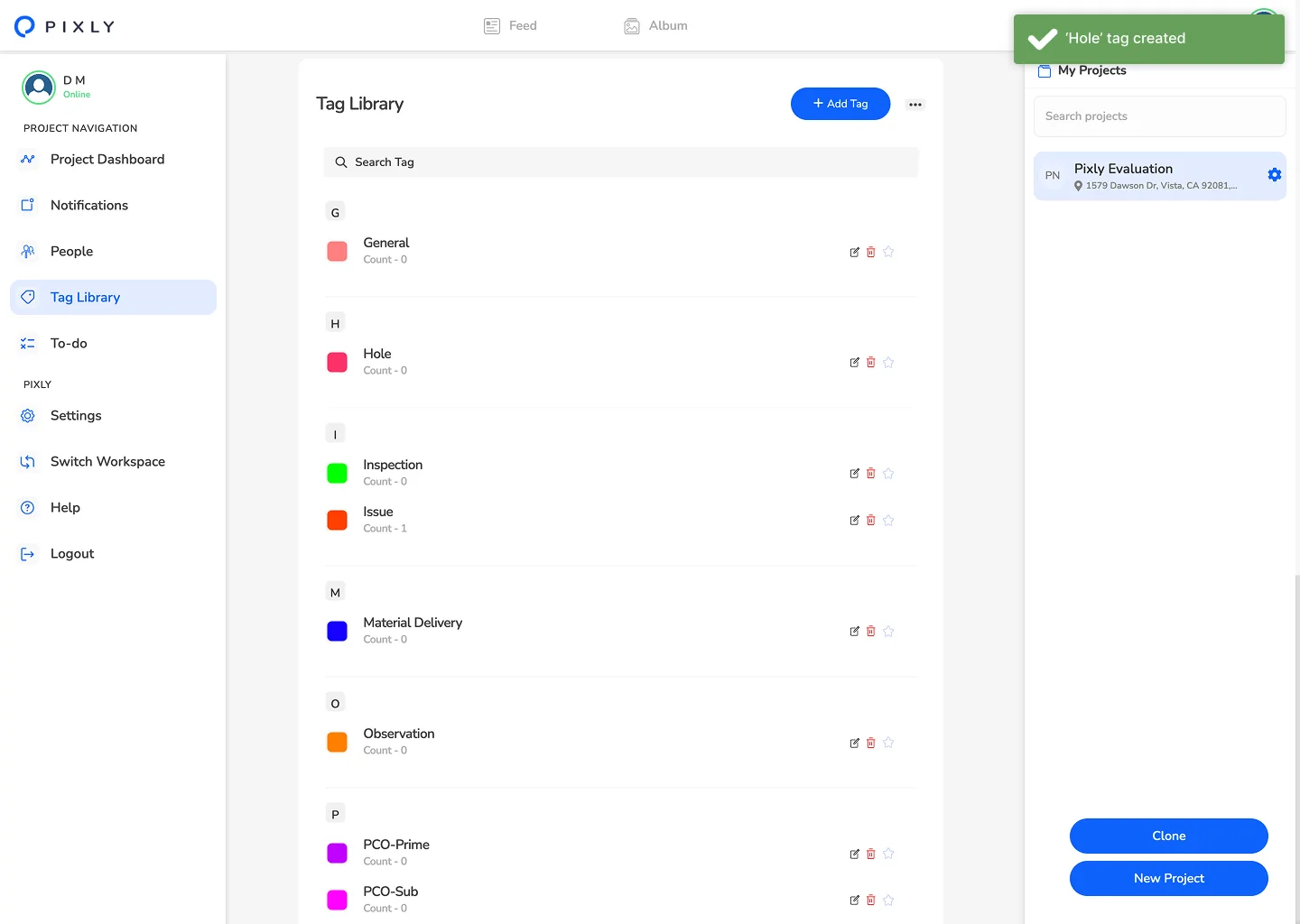
AWS Rekognition produces generic object labels. SageMaker custom models produce domain labels—rebar types, concrete conditions, equipment models. The taxonomy had to merge both into one vocabulary that matched how field users actually spoke.
SnapSoft's initial label set didn't map to field vocabulary. “Excavating equipment” isn't what Marcus says; “excavator” and “backhoe” are. Building the synonym map required sitting between ML output and user research—forcing an alignment neither party was initially scoping for.
What was validated and what wasn't
Validated: tag accuracy.
Exceeded 90% precision on high-confidence construction-specific tags, confirmed through user testing and manual audit. The taxonomy held up against real field vocabulary.
Hypothesis: search adoption.
Target of 60%+ engagement within the first month (up from 23% on date/location filters) requires production deployment to measure.
Scoped out deliberately.
Collaborative tagging provenance and faceted navigation for mature tag libraries were deferred to production. Co-locating AI and UX for the first sprint would have saved the week lost to async taxonomy back-and-forth.

Results
“Pixly saves us time and resources and has streamlined our photo documentation process. It's an absolute game-changer!”
Tim Van Hook Director of Learning & Development, Kitchen Saver
Tag accuracy validated above 90% precision during the AWS-funded POC. The path to full deployment is open—with $1M+ pipeline unlocked with Kiewit, Granite, and Kahua.
Your rivals expect you to sleep on your UX. They thrive on what you ignore. Prove them wrong
Next project
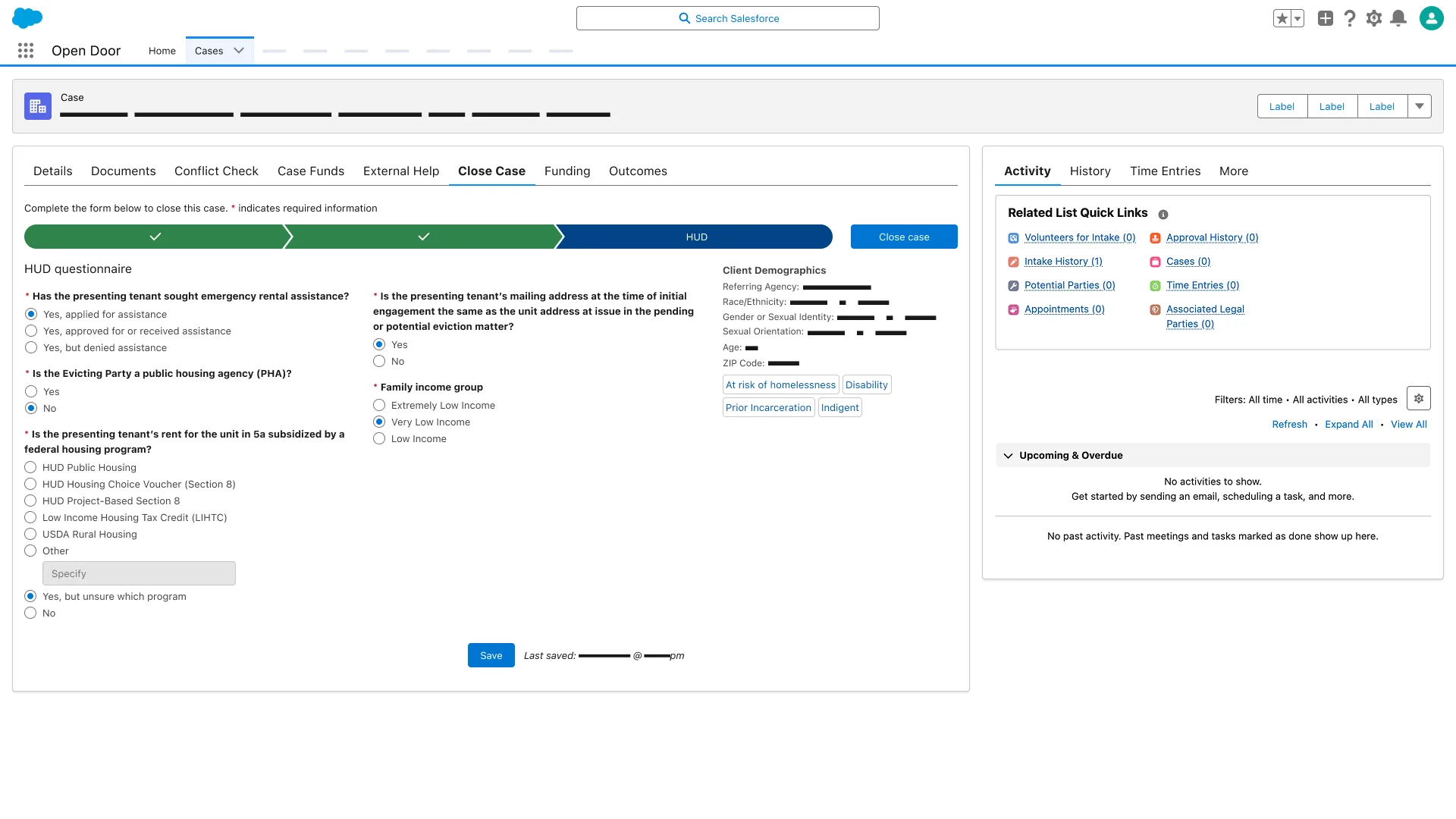
Ethics review. Salesforce. 80 NPS.
Infrastructure for Legal Tech
NPS 80
Keep scrolling
Continue to Open Door Legal